From one robot sketch to a moving 3D character with Tripo
Follow the recorded route from image generation to rigging, animation and an export checked in Blender and Unity.

 Watch the original video ↗
What the project set out to do
Thanks to Tripo for sponsoring this video.
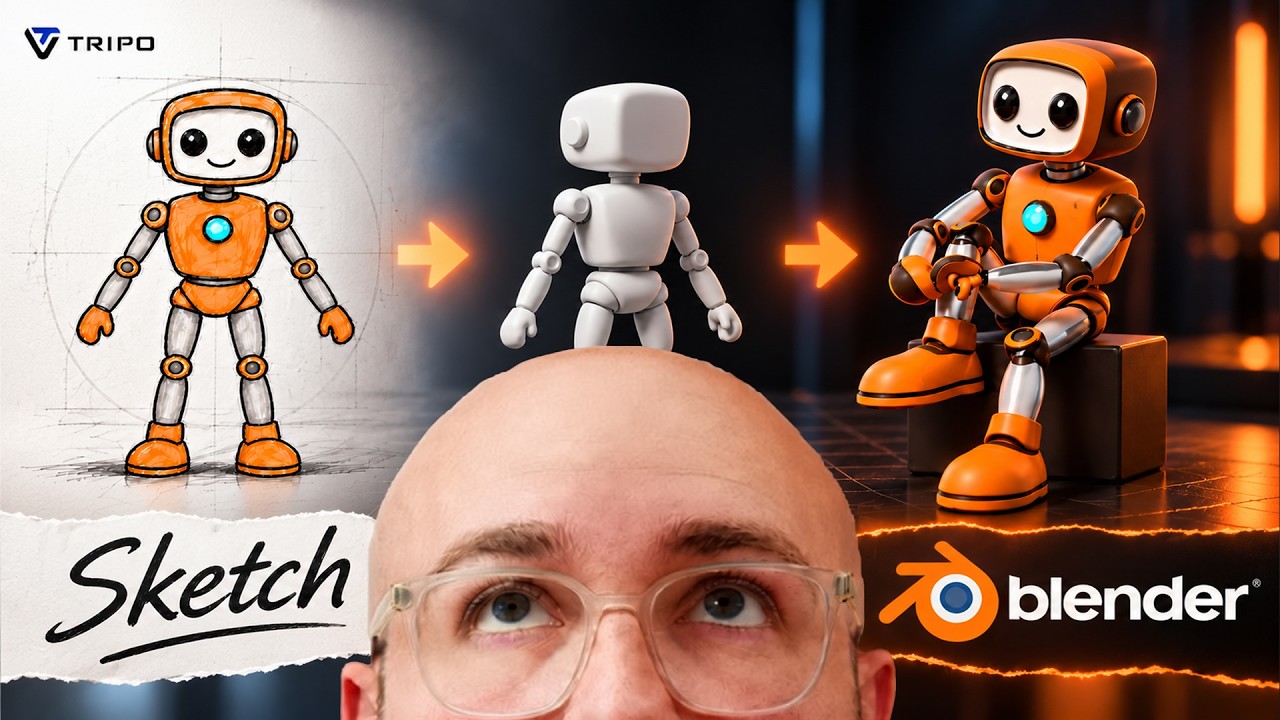
A character image is a starting point. This project takes an AI-generated robot sketch through the stages needed to make it move: a 3D mesh, texture, skeleton, animation clips and an export into other software. The published walkthrough describes a working prototype and keeps the remaining cleanup visible.
Tripo supplies the character and its animations. GPT-6 Astra helps plan the work and writes Blender scripts for the surrounding scene. Separating those contributions makes the workflow easier to understand: the character pipeline and the scene around it are related jobs with different tools.
The character pipeline
The demonstration begins in Tripo Studio with Smart Mesh P2.0. It generates and inspects the model before adding texture and an automatic rig. That order provides a useful structure for following the video: first look at the shape, then prepare the surface and movement.
The description identifies the rig and animation choices below. It does not supply every numeric setting, so the linked video remains the reference for the on-screen setup.
- Generate the character from the robot image using Smart Mesh P2.0, then inspect the mesh.
- Add texture and a Humanoid rig, using the Mixamo skeleton preset.
- In Tripo Animate → Preset, choose walk and wave_goodbye_02.
- Export FBX with the skeleton and both animation clips selected.
Check what survives the handoff
The next stage follows the export into Blender and Unity. In Blender, the AI-written scene scripts add an entrance, head tilt, lights, camera and an orb around Tripo’s walk and wave. In Unity, the project adds a material, movement controller and floor correction.
These checks matter because the useful outcome is a character that can continue into a wider project. The walkthrough also inspects bending joints. Its published description explicitly says the shoulder and hand still need skinning cleanup, while collisions and gameplay require more work.
Use this as a map of a prototype workflow, with the original video open beside it. It is a route for exploring how an image becomes an animated asset; it does not establish that the exported character is ready for a finished game.
The takeaway
Treat generation, rigging, animation and export checks as separate stages. The prototype can move, and the remaining joint and gameplay work still matters.
About this article and its sources
Video companion based on the published video description retrieved 26 October 2026. The video was not watched or transcribed for this companion, and the current interface was not independently retested. Exact numeric settings, prompt text and downloadable project files are not established here. Published promotional offers require a fresh check before reuse.